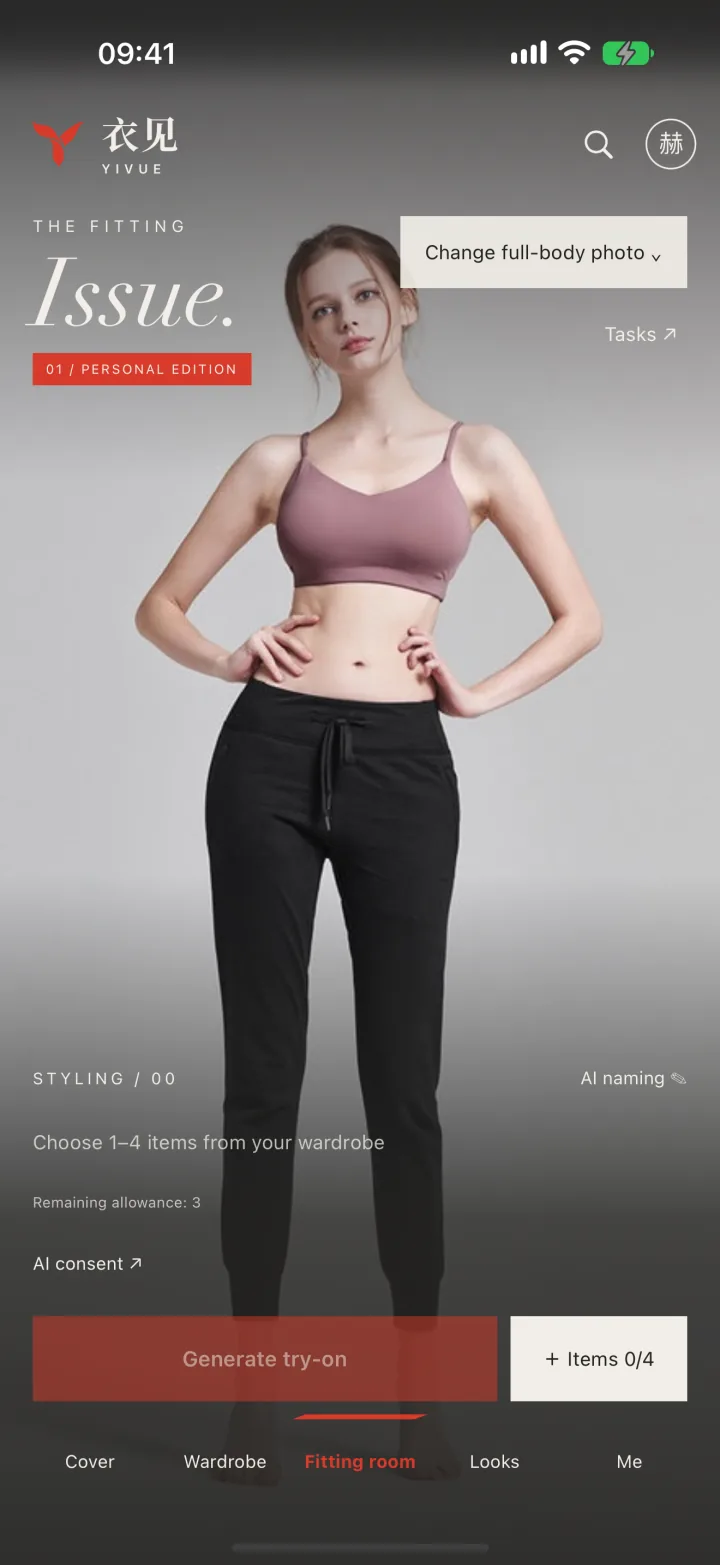
AI clothes changer
Use your own photo to explore how a garment could look on you, then compare different combinations.
Explore the AI clothes changer → 衣见YIVUE
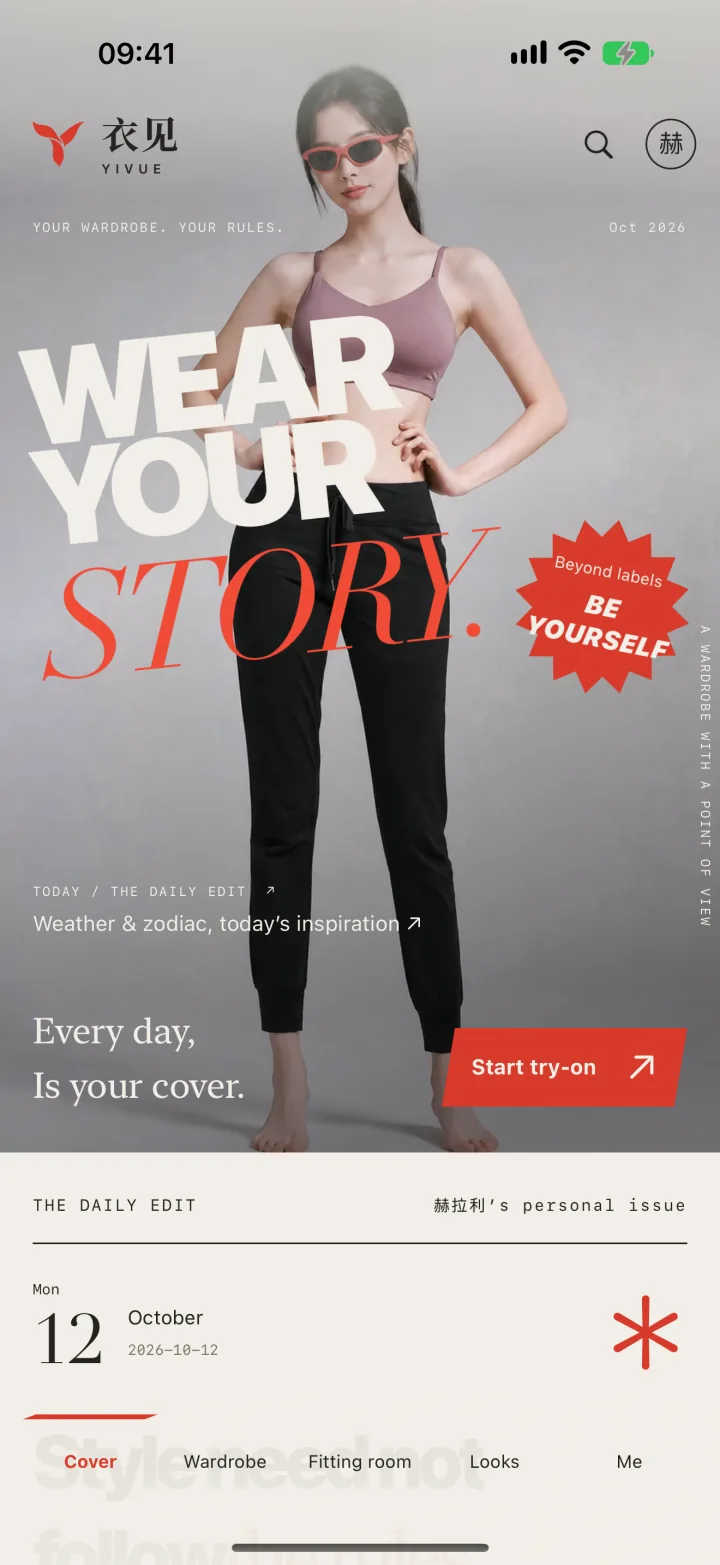
THE PERSONAL ISSUEYOUR WARDROBE. YOUR STORY.
YOUR PHOTO. YOUR CLOTHES. YOUR STORY.
Use a photo of yourself and a clothing image to preview outfits in the YiVue app. Compare looks, save your favorites and organize the clothes in your digital wardrobe.
Try-on is available in the mobile app. Android & all downloads
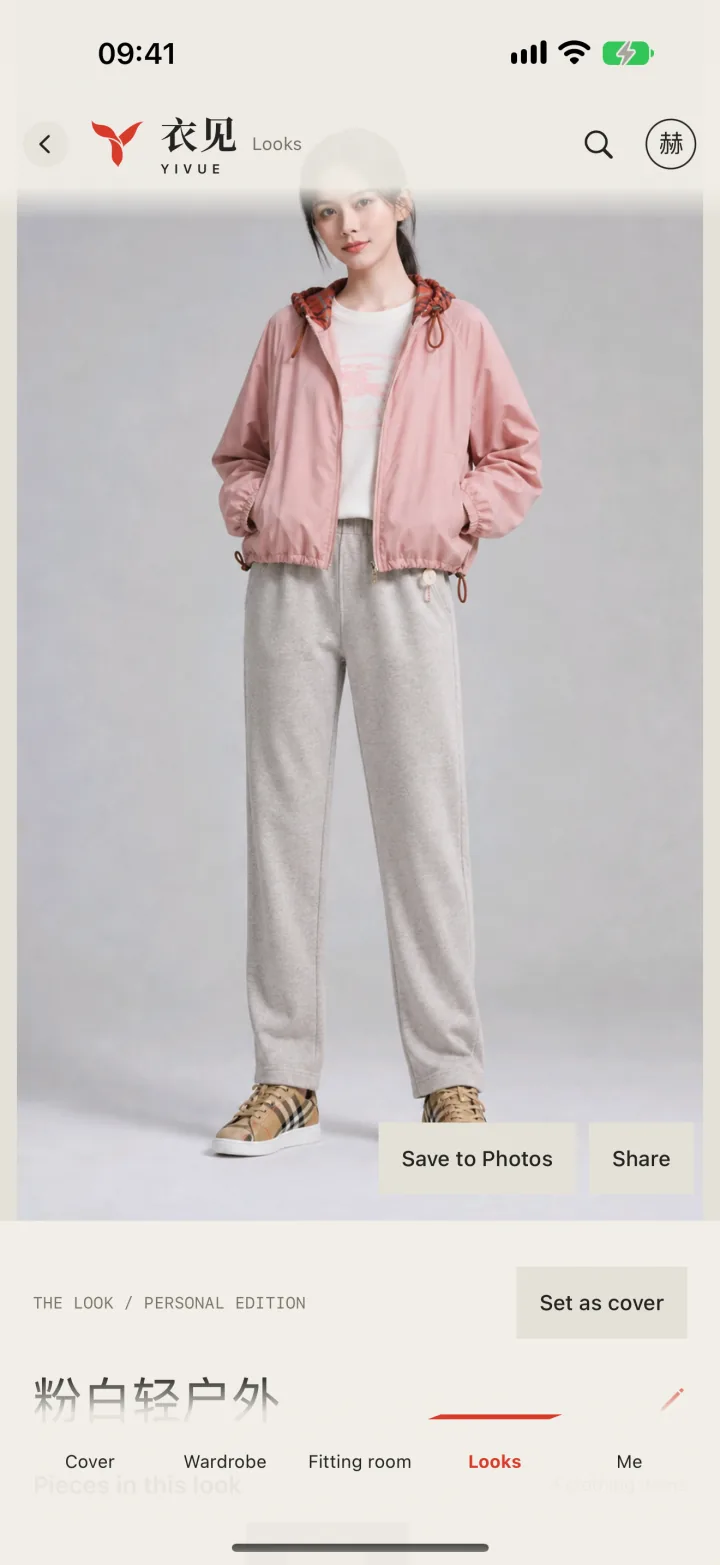
A LOOK, SAVED IN YIVUE
FROM PHOTO TO OUTFIT
Start with one garment you want to see on yourself. Here is the flow in the mobile app.
Use a clear, front-facing full-body photo and a clothing image with a visible outline.
Select the person photo and clothes in the fitting room, then start AI try-on to preview the combination.
Review the colors and overall look, try another combination, and save the outfits you want to revisit.
TRY IT. KEEP IT. WEAR IT AGAIN.
Keep your clothes and saved looks together, so the next outfit starts with what you already have.
Use your own photo to explore how a garment could look on you, then compare different combinations.
Explore the AI clothes changer →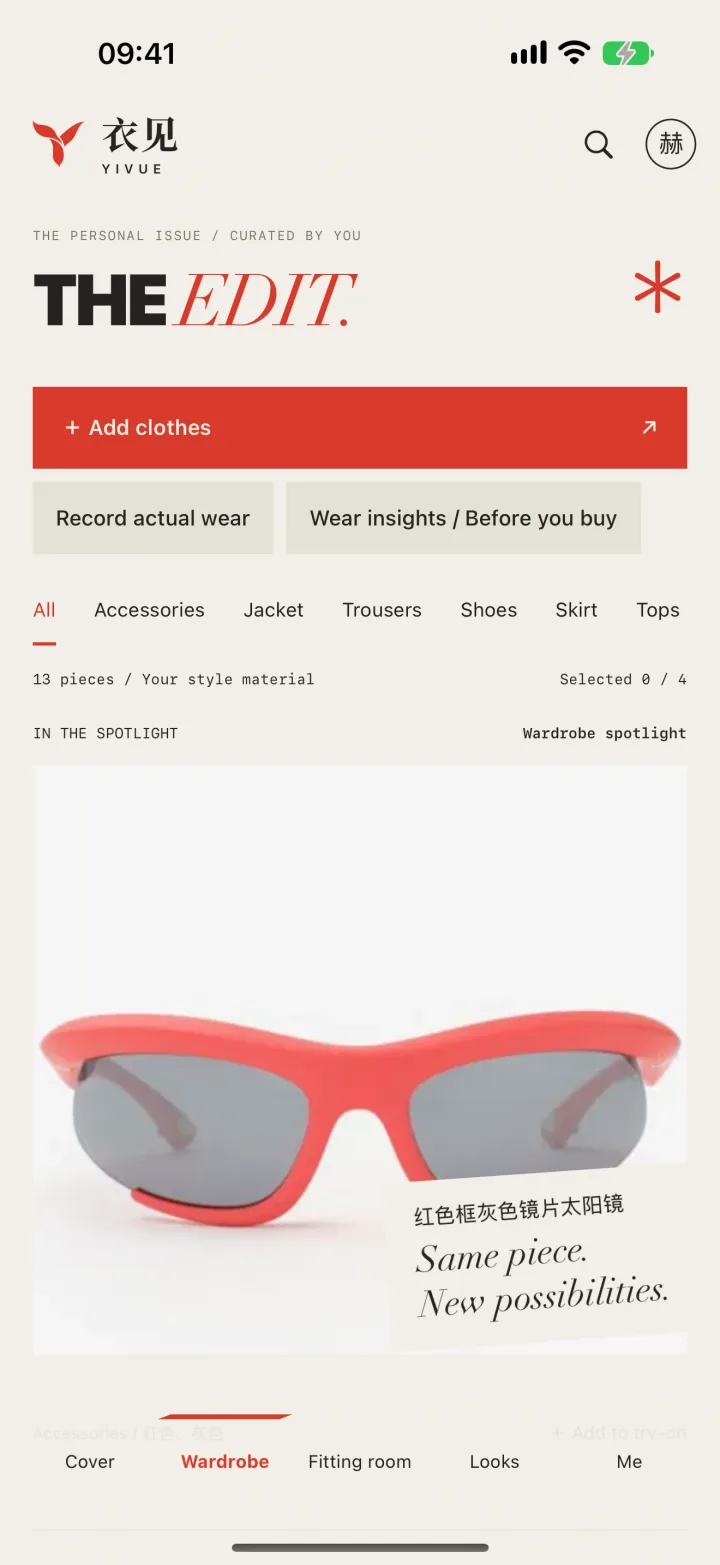
Record clothing photos, categories and tags. Find the pieces you own when planning your next outfit.
Explore the digital wardrobe →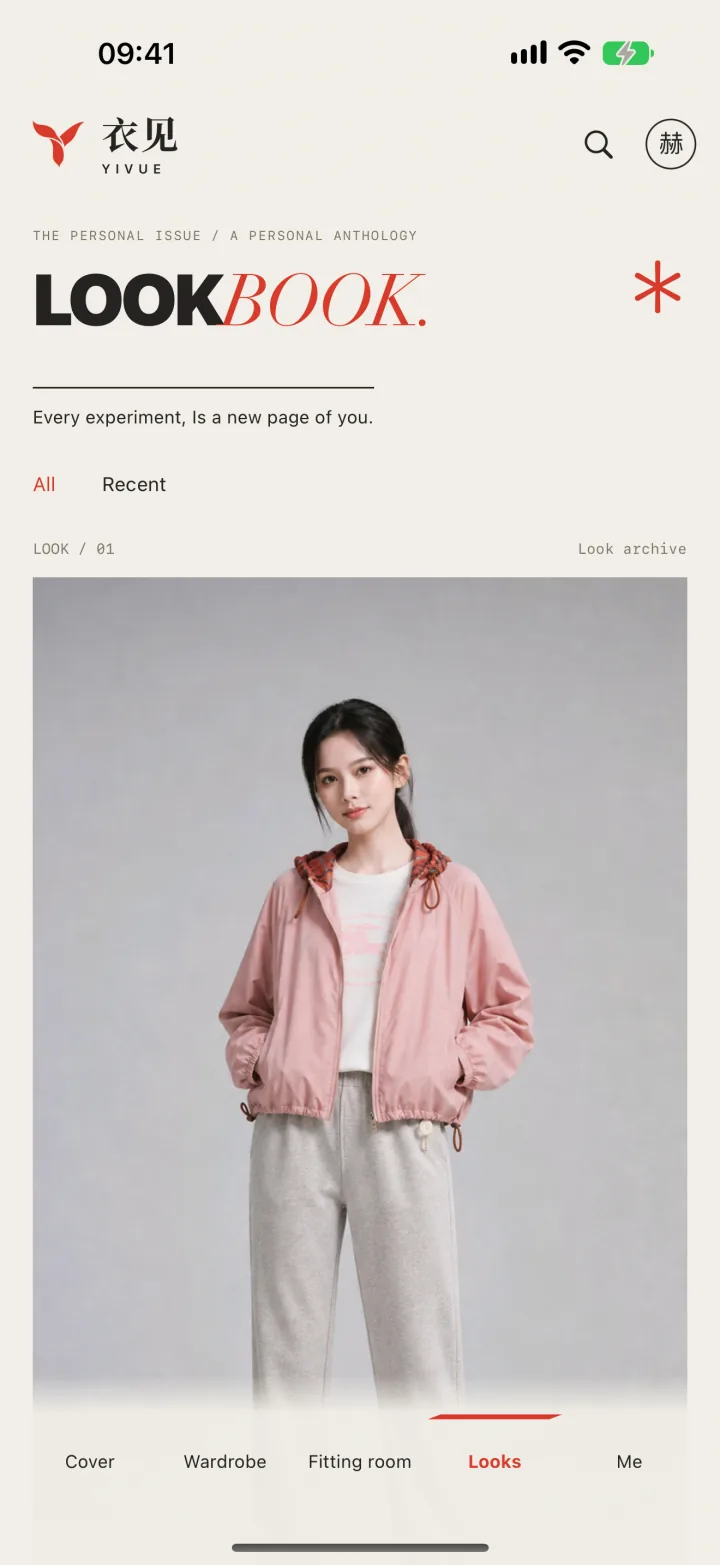
Plan outfits with clothes you own. Save combinations you like and revisit them for workdays, days out or a change of season.
Explore the outfit planner →A WIDER PERSPECTIVE / THE SAME PERSONAL ISSUE
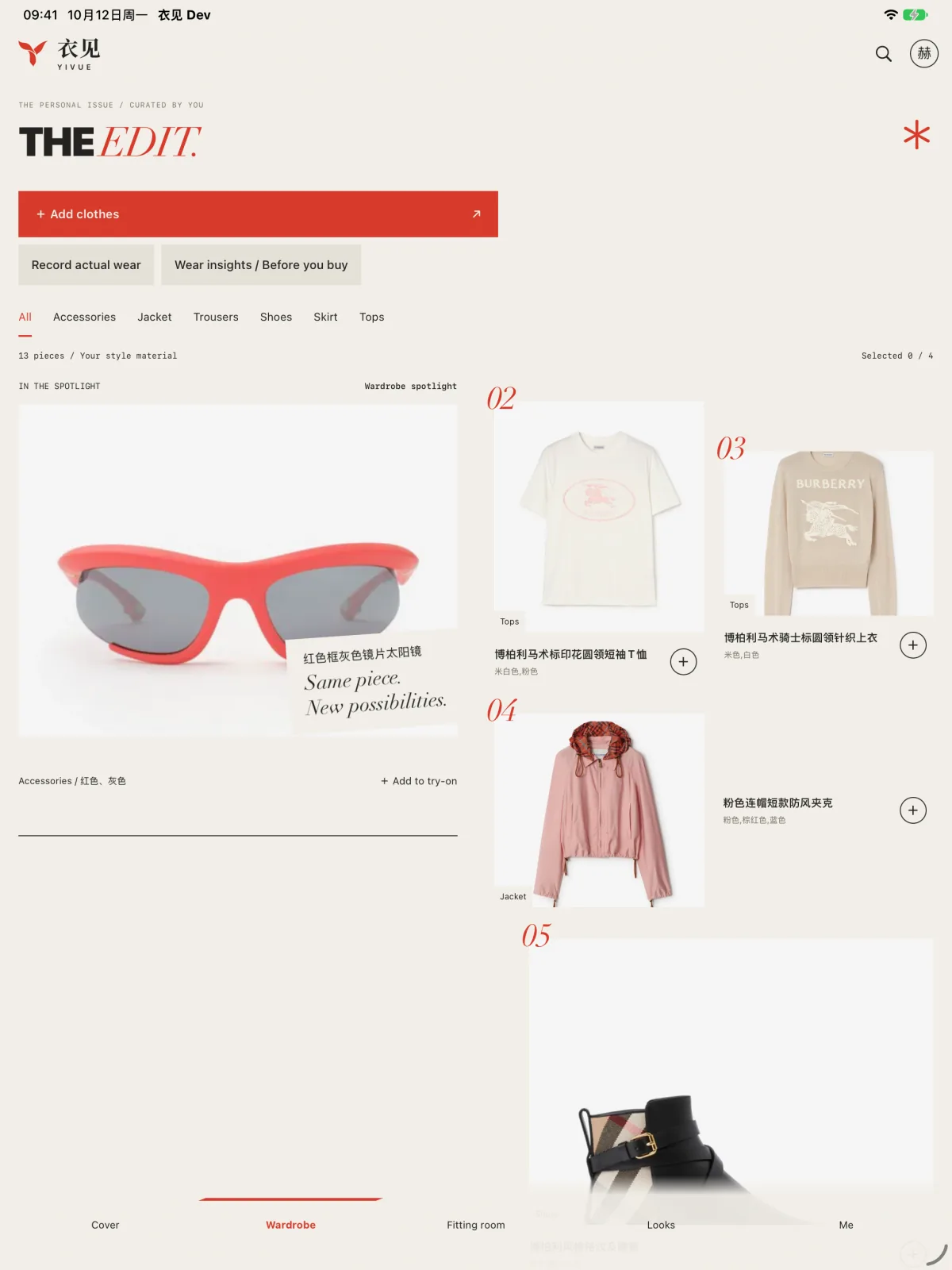
Browse your pieces in YiVue’s native iPad layout. See more of your wardrobe while choosing your next combination.
AI TRY-ON WITH YOUR OWN PHOTOS
Learn how to try on clothes with your own photo in YiVue. Prepare a full-body photo and clothing image, generate an AI preview and check the result.
BEFORE YOUR FIRST TRY-ON
YiVue offers memberships and usage-credit purchases. Available allowances, prices and renewal terms are shown in the app and on the purchase screen before confirmation. Check your balance before generating.
Try-on sends selected photos to the AI services described in the privacy policy. The app asks for separate AI consent; you can decline or withdraw it in the Legal Center. Withdrawal does not automatically delete saved photos and results.
A FEW MORE ANSWERS
Yes. Select a full-body photo and a garment image in the mobile app to generate a preview of yourself wearing the selected clothes. Compare outfit ideas, then save the looks you like.
Try-on runs in the YiVue mobile app. This website shows app screens and explains how to prepare your photos. Download the iPhone or Android app to generate your own preview.
Start with a clear, front-facing, full-body photo and an image that shows the garment clearly. Use photos you own or have permission to use. Avoid heavy obstruction and keep the clothing outline visible.
It is a visual reference for comparing colors and styles. It cannot determine physical fit, exact measurements or how a fabric feels. Check the size chart and actual garment before buying.
Generated images can change prints, edges and body proportions, especially where the source image is unclear or obstructed. Compare the preview with your source photos and check the details that matter to you.
Yes. Add clothes to your digital wardrobe, organize them with categories and tags, and save looks to revisit when planning an outfit.
Download YiVue. Prepare a photo of yourself and the clothes, then explore your next look in the app.
For iPhone and Android · Review current allowances and purchase options in the app.