
How to try on clothes with your own photo
To try on clothes with your own photo, start with a clear full-body photo and an image of the garment. Select both in the YiVue mobile fitting room to generate an AI outfit preview. Follow the steps below to prepare your images, review the result and save a look.
1. Take a clear person photo
For an initial attempt, choose a front-facing photo with your full body in frame, even lighting and a simple background. Keep the area you want to try on visible. A bag or crossed arms can hide the shape you need to judge later.
- Include the full outfit area instead of using a tightly cropped selfie.
- Avoid strong filters that change body proportions or obscure details.
- Use your own photo or one you have permission to process.
2. Prepare the clothing image
Start with one garment whose outline, color and front details are easy to see. A flat or hanging presentation can make the reference easier to inspect. Avoid several pieces piled together, deep folds, text overlays and objects covering the garment.
If you use a product image, make sure you have permission to use it. Detailed prints and small fastenings need particular attention when you compare the generated result with the original.
3. Select the photos in YiVue
- Add the clothes you want to try to your wardrobe.
- Open the fitting room and choose or change your person photo.
- Choose the garment for this attempt and check your available allowance.
- Review the AI consent request and start try-on when you are ready.
- Inspect the preview and save the looks you want to revisit.
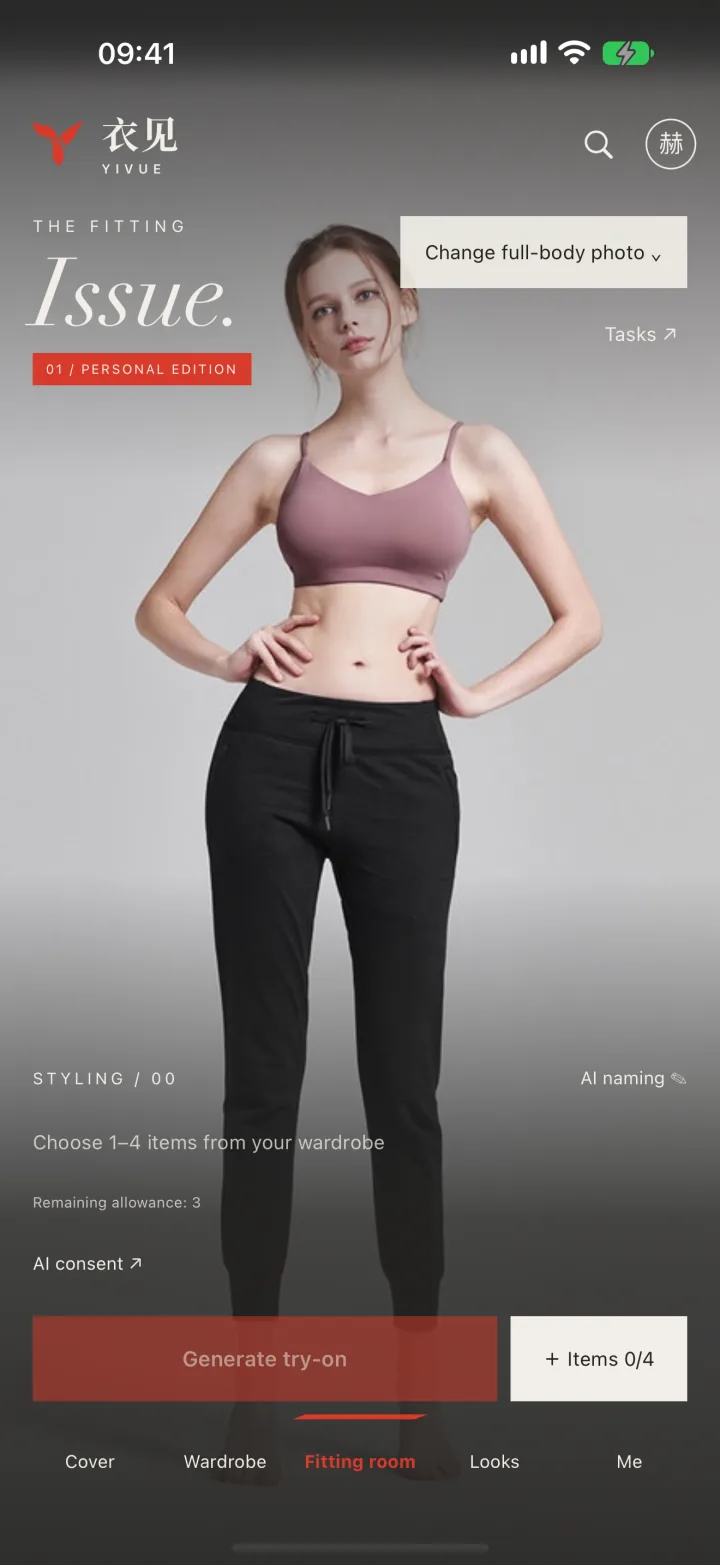
The screenshot shows the fitting room. Its displayed balance belongs to the example account at the time of capture. Available allowances and purchase options are shown in your app.
4. Inspect the result before saving
- Overall outfit: does the color and silhouette combination help you compare styling ideas?
- Garment details: compare prints, neckline, sleeves and hem with your original image.
- Person details: check hands, pose and body proportions for unwanted changes.
A preview can help compare the visual combination, but it cannot establish garment measurements, fabric feel or physical fit. Use the actual size chart and garment when deciding what to buy.
If the preview looks wrong
- The garment outline is unclear
- Inspect the source image for folds or obstruction. Try a clearer photo that shows the relevant edges.
- Hands or accessories overlap the clothing
- Use a person photo where the try-on area is visible and arms are not covering it.
- Prints, fastenings or proportions changed
- Compare with the original. A clearer image may help, but these are generated details and accuracy is not guaranteed.
- Generation fails instead of returning an image
- Read the error shown in the app and check your connection, photo selection and available allowance. A service error is different from an unwanted visual result.
Photos, consent and keeping your looks
AI try-on processes your selected photos through the services described in the privacy policy. Review the authorization before starting. Withdrawing consent stops new AI processing but does not automatically delete saved images or results. Photo processing and retention
When a combination is useful, keep it in your saved looks and organize the source clothes in your wardrobe. This makes your next outfit start with pieces you can find again. Saved looks in YiVue
Continue exploring
Try-on is available in the mobile app for iPhone and Android.
Download YiVue